User guide
Every feature of the PrepperPapa app, screen by screen: where to find it, what it is for and how to use it. The app has help built in as well: the question mark in the screen header.
If the app asks you to sign in
- Enter your e-mail address.
- Request a code. A six-digit code arrives by e-mail within a few minutes.
- Enter the code. No password needed.
Free and premium in short: the torch, SOS, Morse, the emergency card and the basic knowledge base articles are free for everyone and work without internet. The free version lets you add up to 2 family members and 50 items, and plan 2 routes a week on the map. A premium code makes these unlimited and adds downloadable offline maps and the extended knowledge base.
1.Home screen
Where: the leftmost button in the bottom menu, Home.
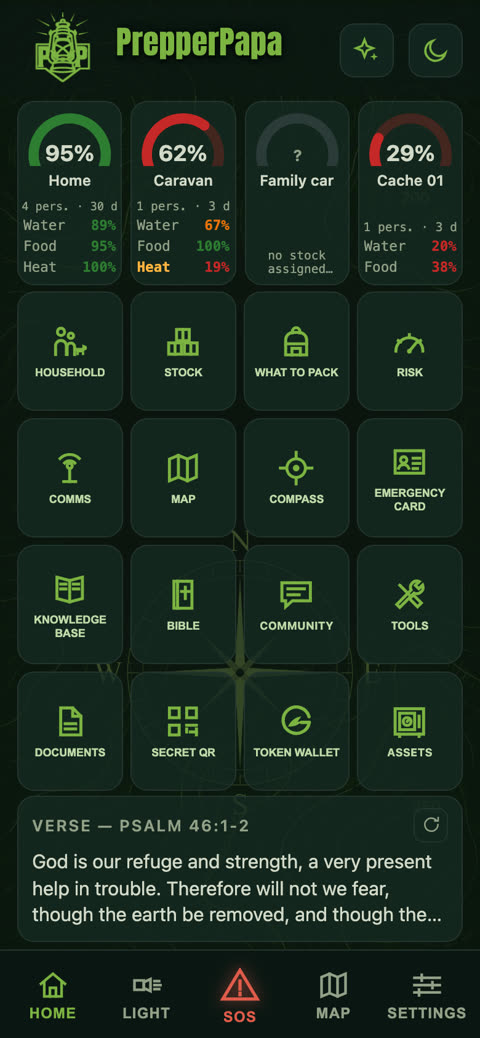
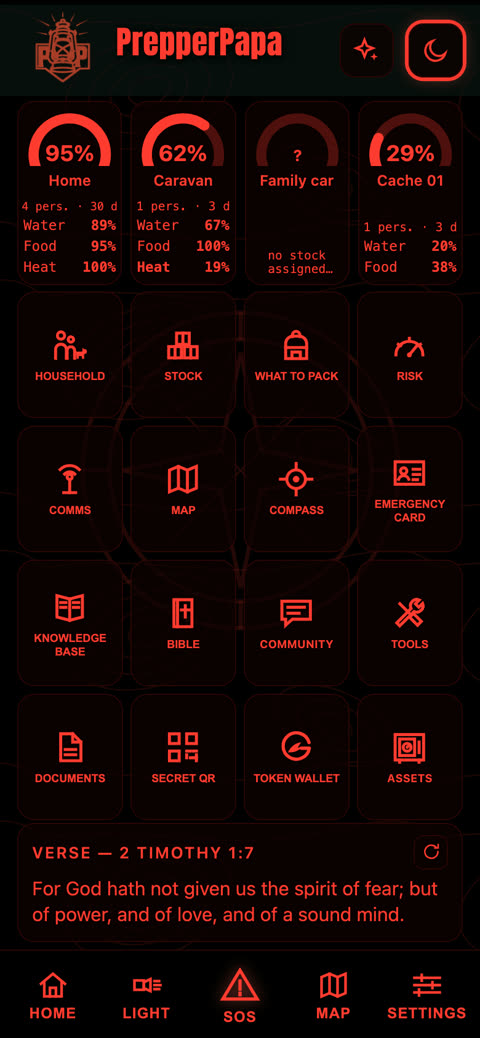
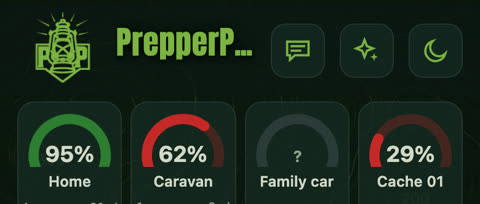
What it does: at the top, the readiness of your locations as a percentage (home, holiday home, car); below them, tiles for every feature; at the very bottom, a daily Bible verse or a knowledge base thought.
- On first launch, use the Load demo data button to try the app with a sample family.
- Tap a location's circle to see what is missing there.
- The tiles take you everywhere: Household, Stock, What to pack, Risk, Comms, Map, Compass, Emergency card, Knowledge base, Bible, Gathering, Tools, Document wallet, Secret QR, Token wallet, Assets.
Tip: a green number is good; orange and red mean something needs restocking.
2.Household
Where: Home > Household tile.
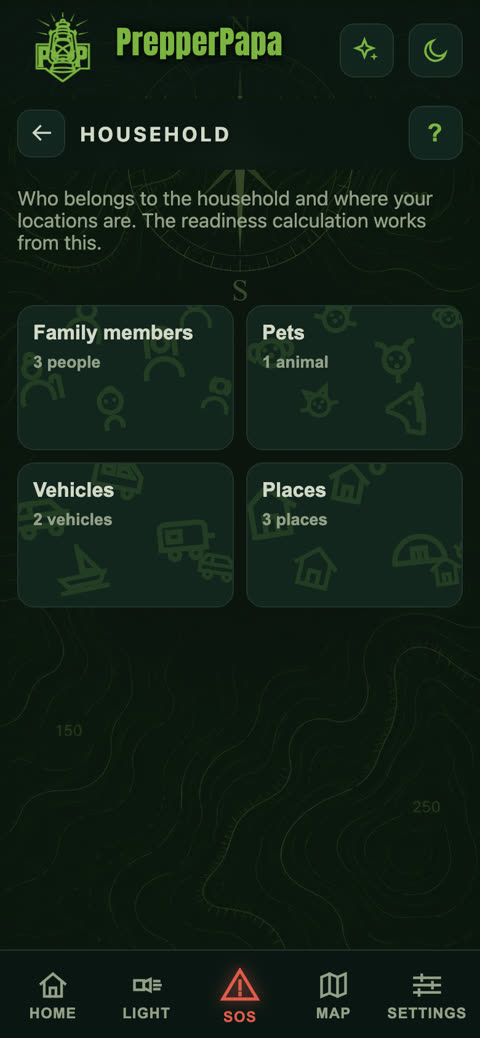
What it does: this is where you enter who belongs to your household and where your locations are. Readiness, daily rations and the packing list are all calculated from it.
- There are four sections: Family members, Pets, Vehicles, Places.
- Tap any of them to see the list, and use the yellow + button to add a new one.
- For places, you enter who arrives there and for how many days.
Tip: the free version lets you add 2 family members; with a premium code, unlimited.
3.Family member profile
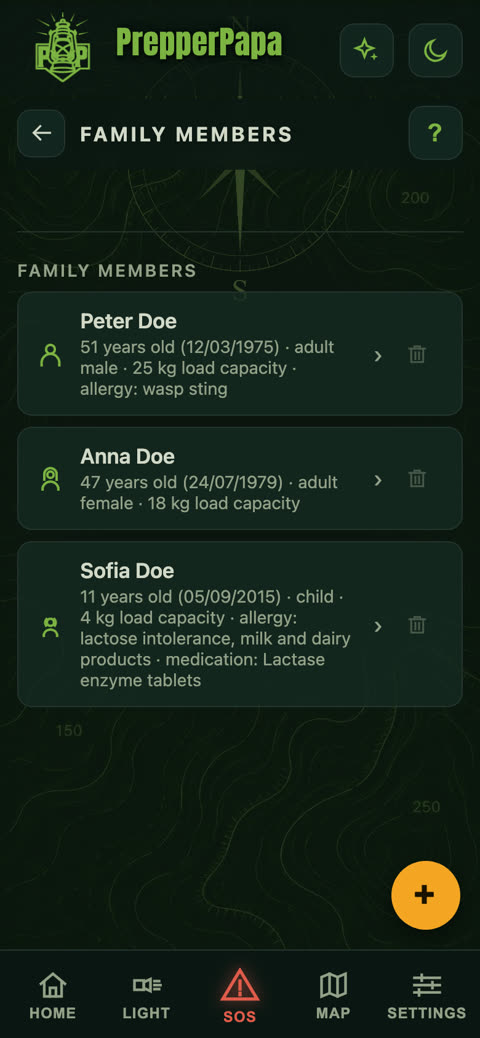
Where: Household > Family members > tap a name.
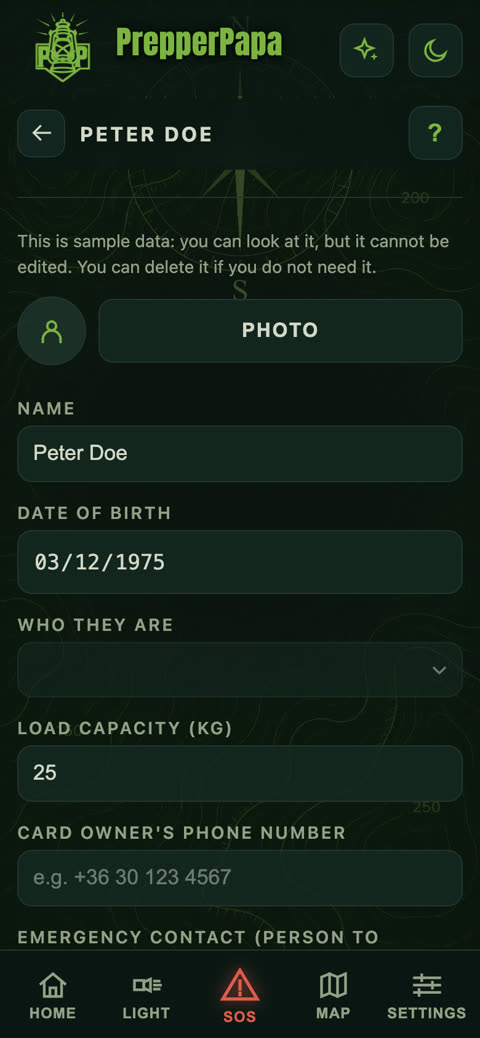
What it does: name, date of birth, who they are (adult, child, infant), load capacity, and the health data for the emergency card.
- Fill in the name and date of birth, and choose who they are.
- Enter the load capacity in kilograms: the packing list uses it to work out who can carry how much.
- In the Health data section, tap the allergies, and enter medication and medical conditions.
- Fill in: “Card owner's phone number”, “Emergency contact (person to notify)” and “Emergency contact phone number”.
- Tick Show my details on the emergency card if this is your own profile.
Tip: the card can be filled in for someone else too, so enter the owner's number and the emergency contact's number in separate fields.
4.Stock
Where: Home > Stock tile.
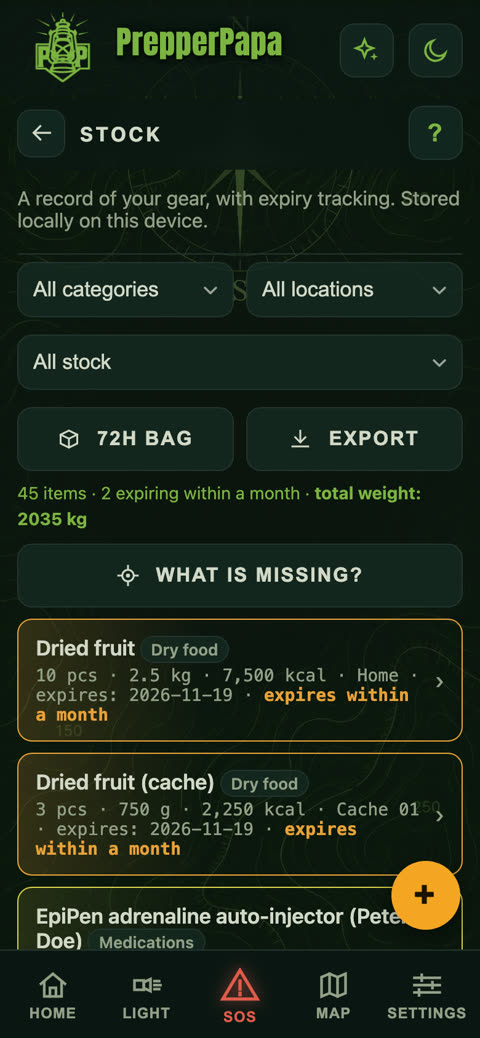
What it does: a record of your gear and food with expiry tracking. You see the number of items, the total weight and what expires within a month.
- You can filter by category, place and stock.
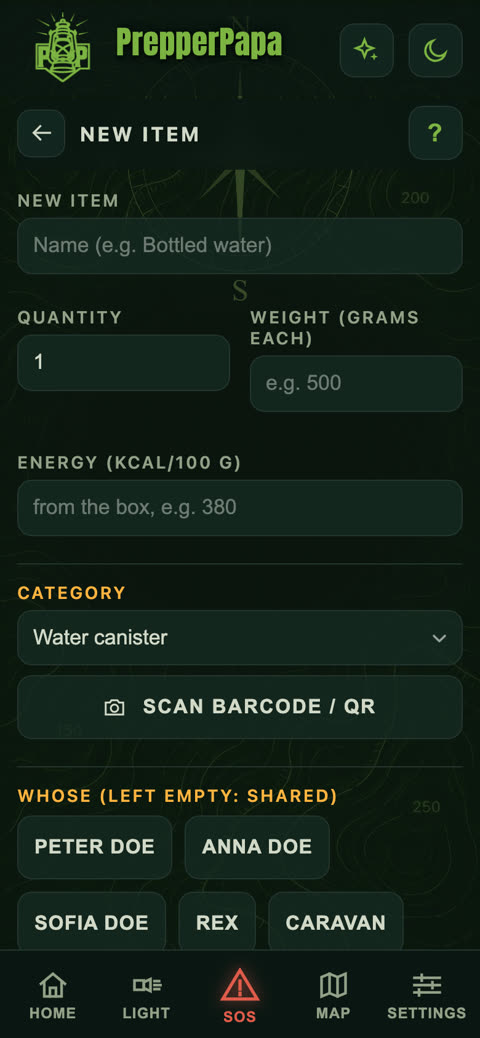
- Use the yellow + button to add a new item: name, quantity, category, expiry date, whose it is, where you keep it.
- With the Scan barcode / QR button you can add it straight from the packaging.
- The What's missing? button shows what is worth restocking.
- The 72h kit button puts together the basic 72-hour kit.
Tip: the free version lets you add 50 items; with a premium code, unlimited.
5.What to pack? (packing list)
Where: Home > What to pack tile.
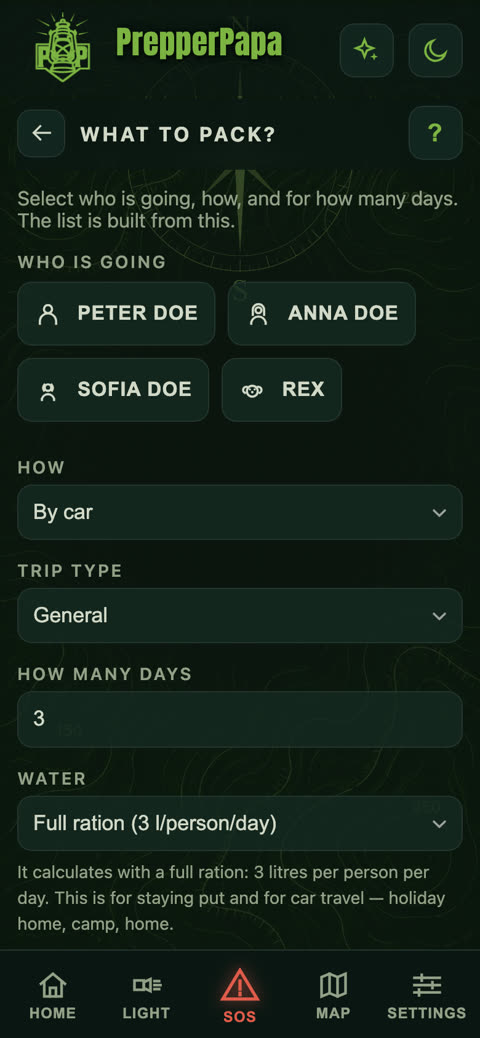
What it does: builds a personalised packing list based on who is going, how, on what kind of trip and for how many days.
- Select who is going (pets can be selected too).
- Choose how you are travelling (by car, on foot, with a backpack) and what kind of trip it is.
- Enter how many days, and what water ration to plan with.
- The app puts the list together, keeping to the weight limit.
Tip: set the load capacity on the family members' profiles, and the list will also share out the load.
6.Risk analysis
Where: Home > Risk tile.
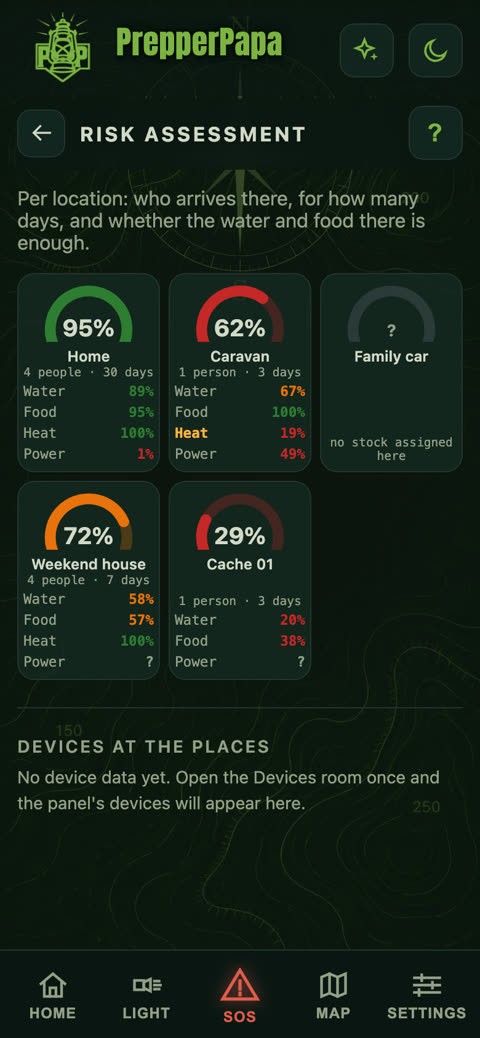
What it does: shows, for each location, who is arriving there, for how many days, and whether the water, food, heating and power there are enough.
- Look at the location circles: the percentage shows the readiness.
- A red row shows what is running low.
- You can restock the shortfall in Stock and assign the item to that location.
Tip: the risk picture is only as accurate as your Household and Stock entries.
7.Map
Where: the Map button in the bottom menu, or Home > Map tile.
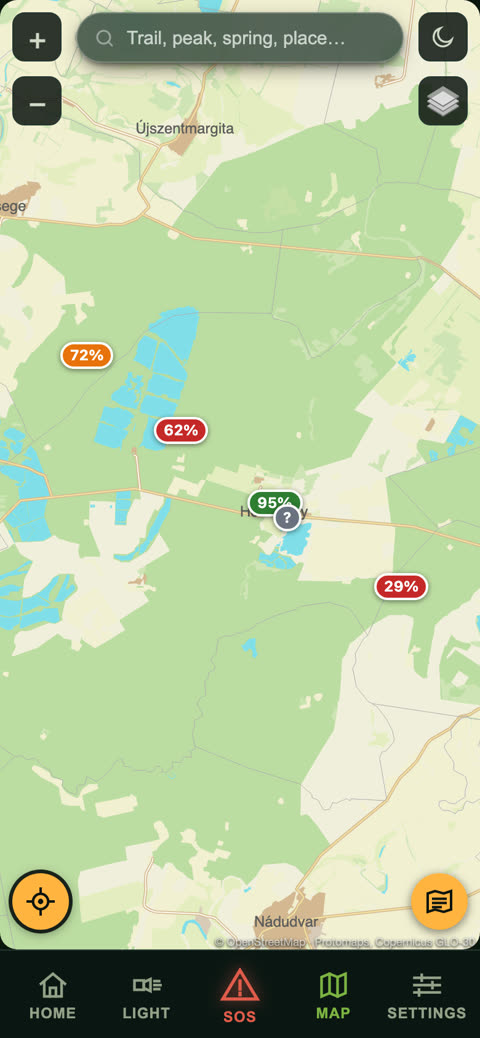
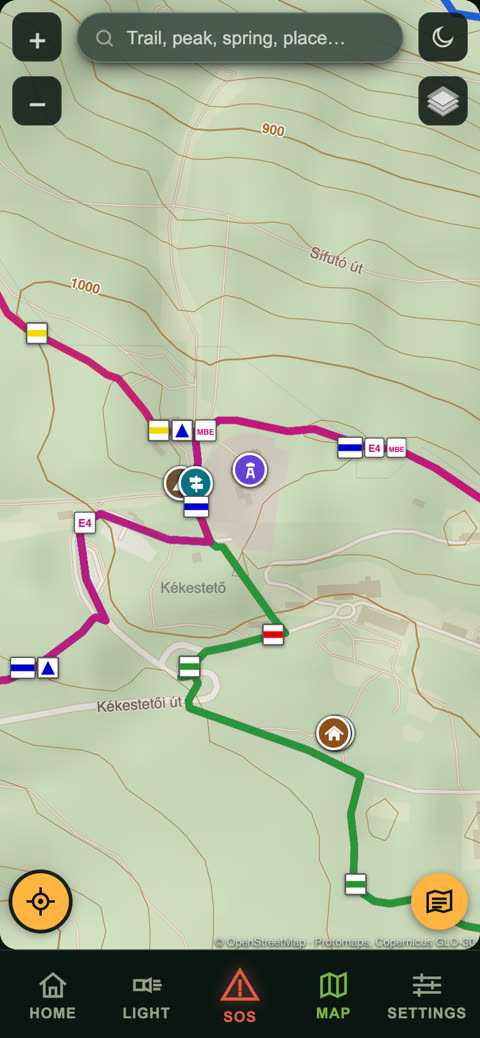
What it does: hiking trails, springs, wells, mountain huts, peaks, lookout towers and other points of interest with consistent, colourful icons. The readiness of your locations is shown on it too. You can search and plan routes.
- Type what you are looking for into the search box at the top (trail, peak, spring, town).
- The crosshair button at the bottom left jumps to your own position.
- Use the + and − buttons to zoom, and the layers button to switch map views.
- Route planning: enter where you are going from and to, and the app shows the distance, walking time, elevation gain and the trail markings to follow.
Free and premium: the online map and 2 route plans a week are free. With a premium code, route planning is unlimited and you can download offline maps (Hungarian regions and foreign countries) that work without internet.
Tip: in night mode the map icons turn red too, so they do not dazzle.
8.Compass
Where: Home > Compass tile.
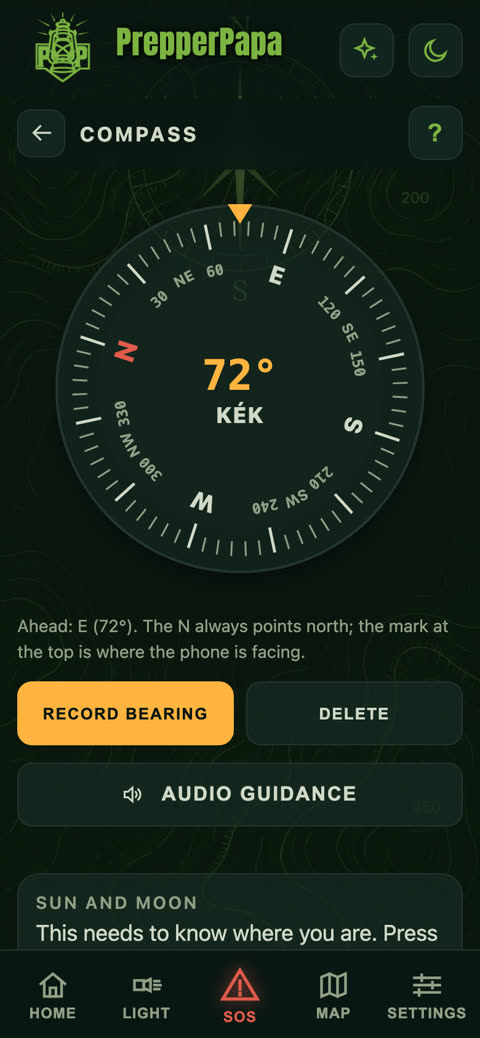
What it does: compass with degrees and cardinal directions, bearing recording, audio guidance, sunrise, sunset and moon phase.
- Face the direction you need to go and tap the Record bearing button.
- Start Audio guidance: if you are heading the right way, a deep, slow tone plays; if you drift off course, it gets higher and faster.
- Your phone can go in your pocket; the sound guides you.
- In the Sun and moon section you can see sunrise, sunset and the moon phase.
Tip: use the Delete button to record a new bearing. If your phone has no compass sensor, the sun and moon section still works.
9.Emergency card
Where: Home > Emergency card tile, and also at the bottom of the SOS screen.
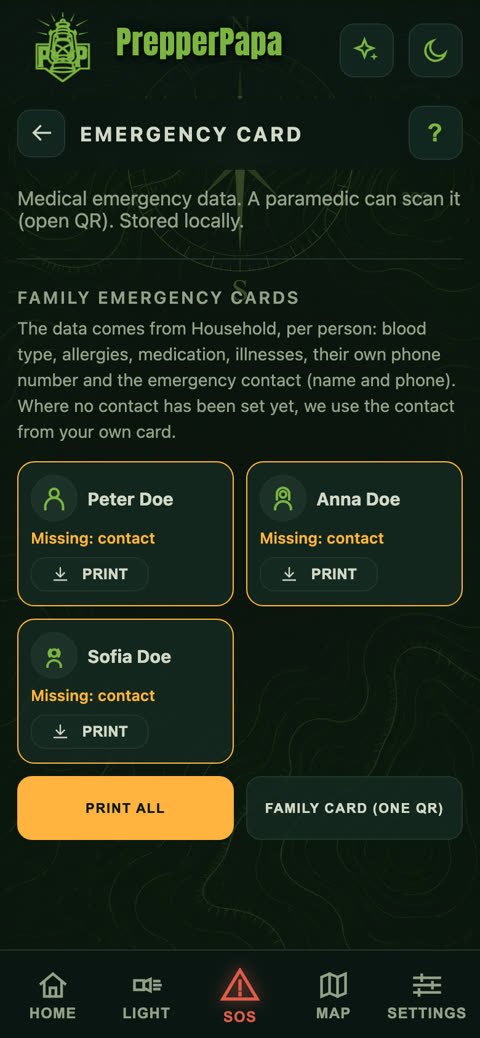
What it does: your family members' emergency health details (blood type, allergies, medication, medical conditions, emergency contact) on one card, which paramedics can also read with a QR code. Works without internet.
- The data comes from Household: fill in the family members' profiles there.
- If someone's card shows “Missing: contact”, add the emergency contact on their profile.
- Use the Print button to print one person's card, or Print all to print everyone's.
- The Family card (one QR) puts the whole family into a single code.
Tip: print it out and keep a copy in your wallet and in the car too.
10.Knowledge base
Where: Home > Knowledge base tile.
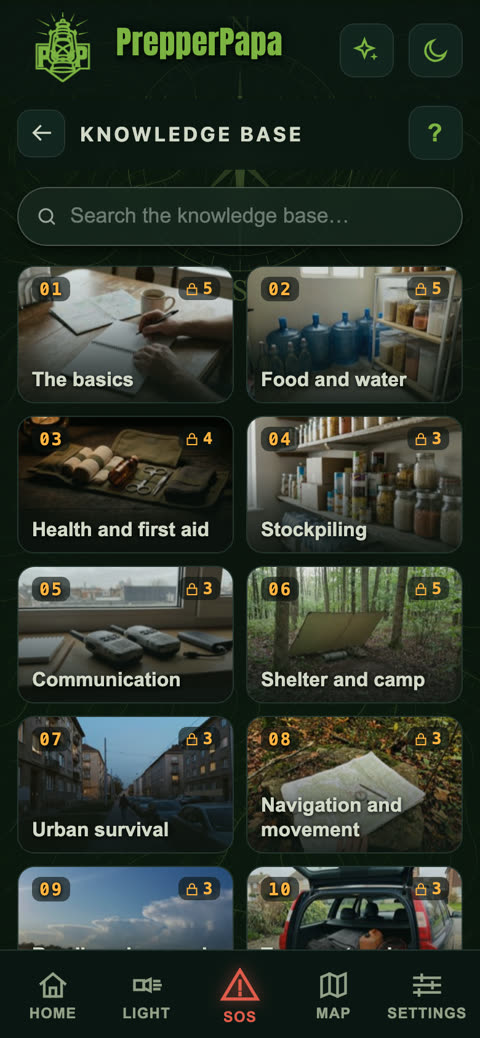
What it does: articles organised by topic, from the basics through food, water and health to urban survival and navigation. The basic articles can be read without internet.
- Tap a topic, for example Basics.
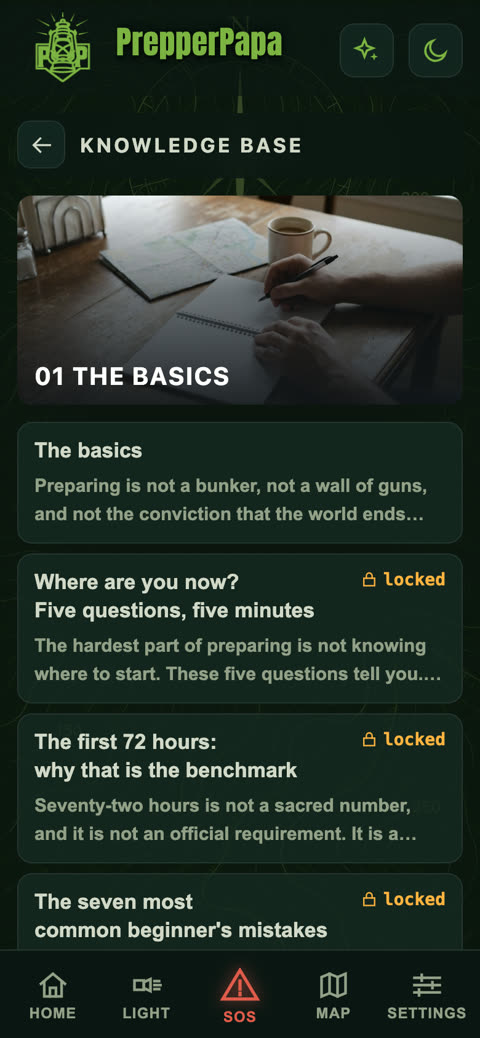
- Choose an article from the list.
- Use the search box at the top to search all articles.
- Articles marked with a padlock (“locked”) are part of the extended knowledge base: they open once you redeem a premium code.
Tip: a different knowledge base thought appears at the bottom of the home screen every day.
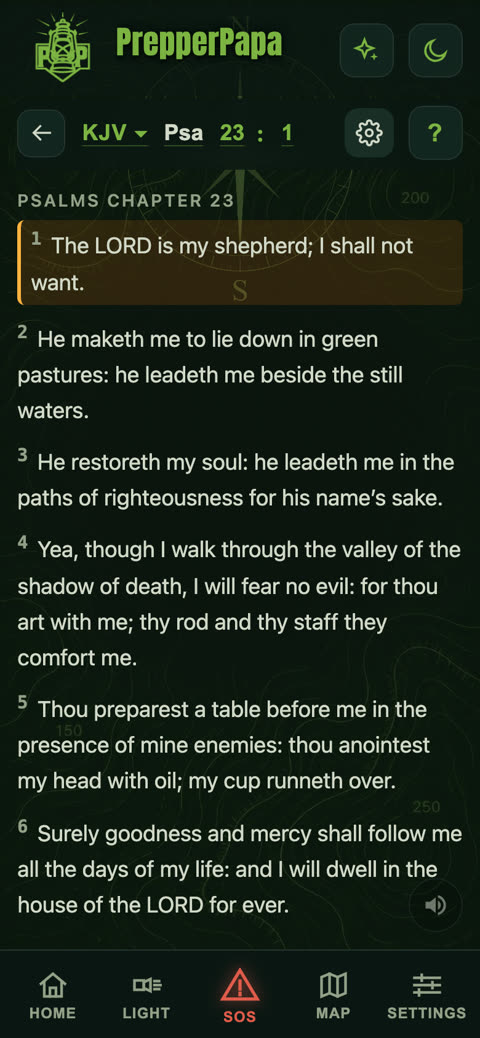
11.Bible
Where: Home > Bible tile.
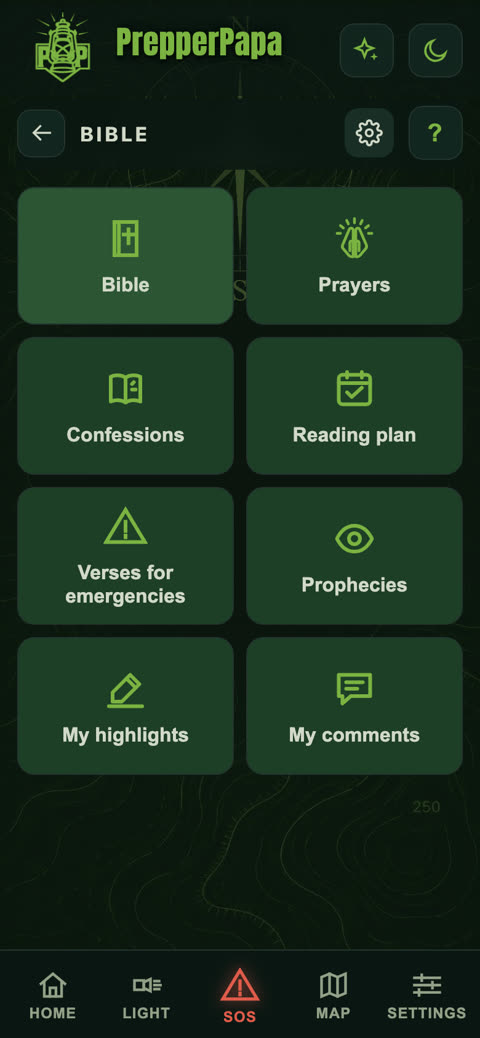
What it does: the King James Version with read-aloud, prayers, confessions, a reading plan, verses for emergencies, prophecies, highlights and your own comments.
- Tap the Bible tile, and the first time use the Download the Bible button to put it on your phone. After that it stays on your phone.
- Choose a book, chapter and verse.
- Tap the speaker icon to have it read aloud.
- The other tiles hold prayers, a reading plan and verses for emergencies.
Tip: tap a verse to highlight it or add a note to it.
12.Comms
Where: Home > Comms tile.
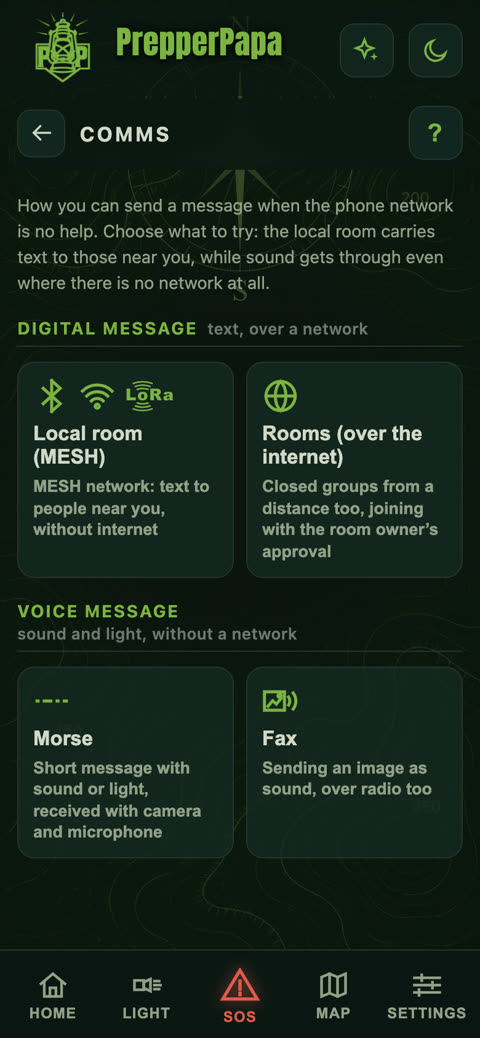
What it does: every way you can send a message when the mobile network cannot help, in one place.
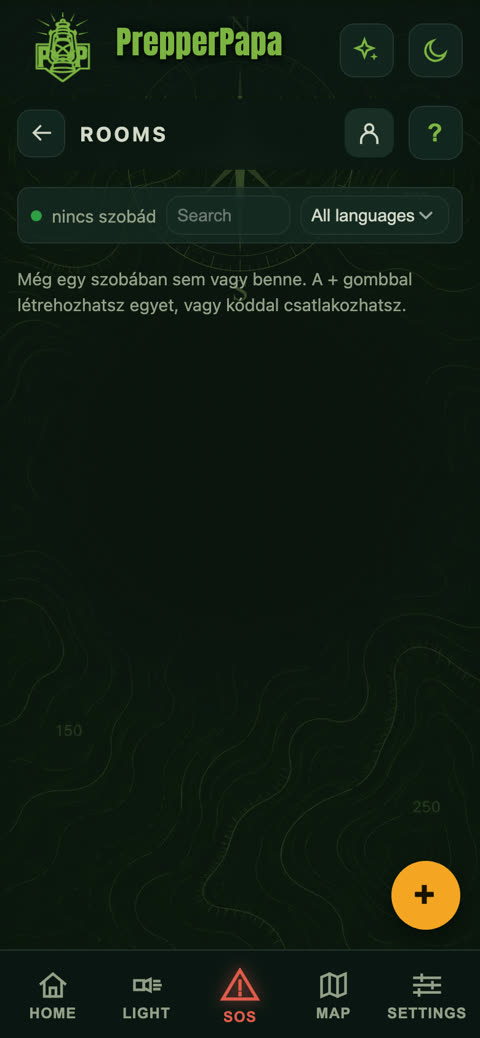
- Digital message: Local room (text to people near you, over shared Wi-Fi, a hotspot or Bluetooth) and Rooms (closed groups over the internet, joining approved by the room's host).
- Voice message: Morse (a short message by sound or light) and Fax (sending a picture as sound, even over radio).
Tip: even with no network at all, Morse and fax still work.
13.Morse
Where: Comms > Morse. Free.
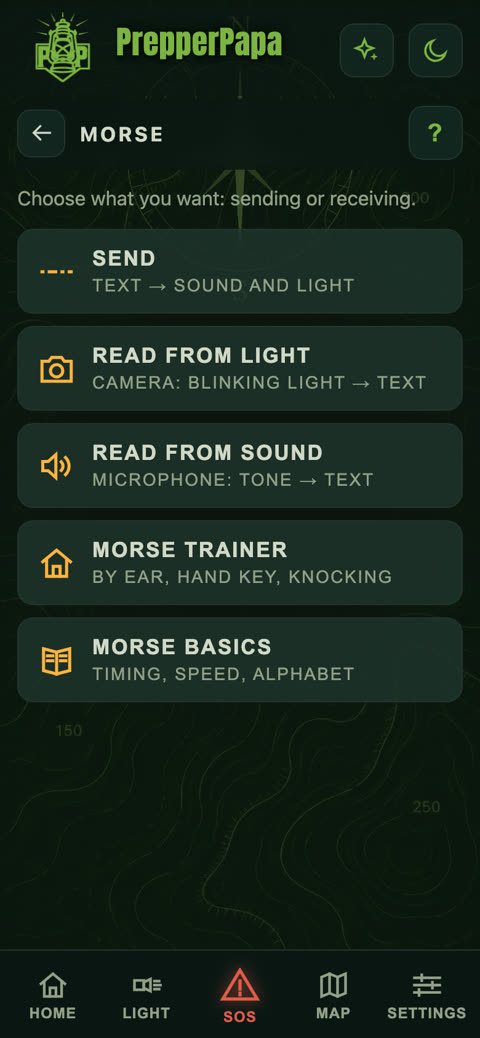
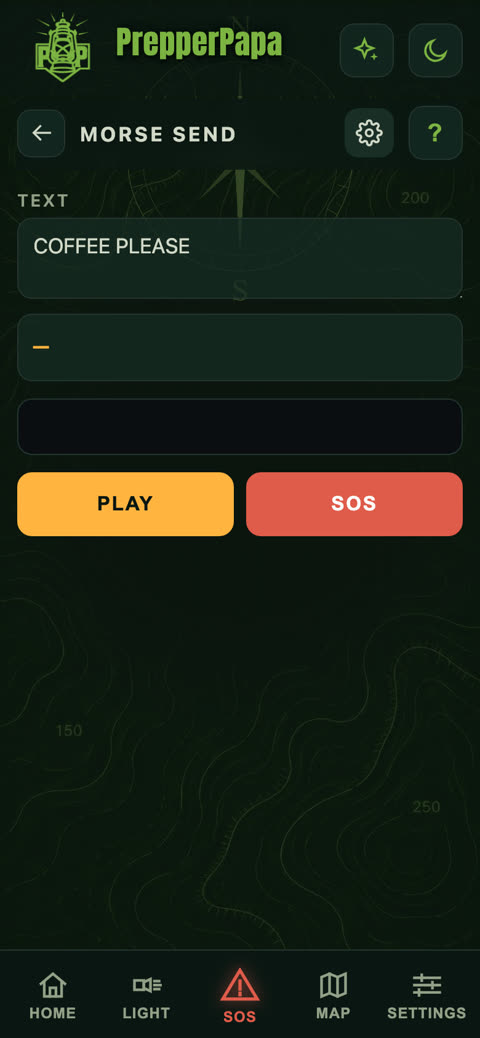
What it does: sends text by sound and light, receives from the camera (flashing light) and the microphone (tone), plus a trainer and the basics.
- Sending: type your text and press the Play button. The SOS button sends the distress signal with one tap.
- Reading from light: point the camera at the flashing light and the app turns it into text.
- Reading from sound: the microphone turns the tone into text.
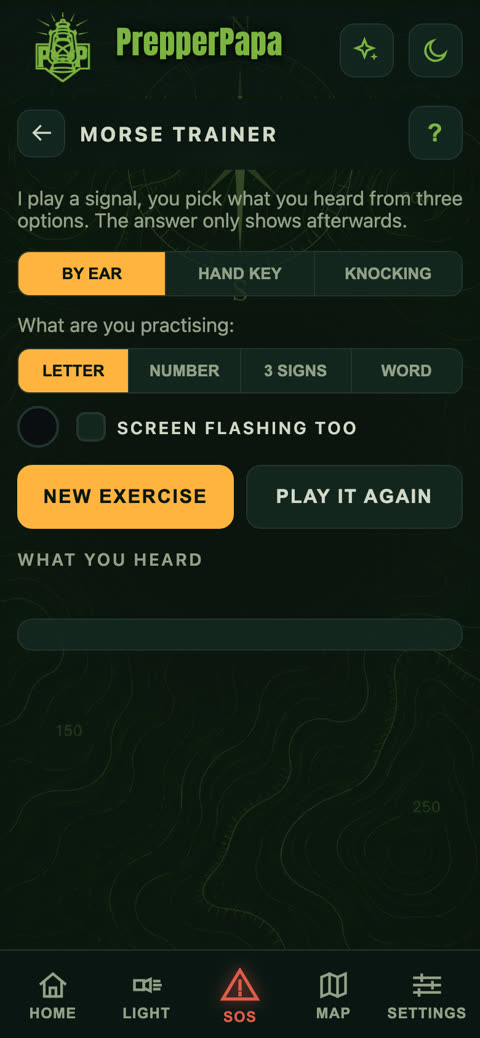
- Morse trainer: practise letters, numbers and words by ear, with a hand key or by tapping.
Tip: the Morse basics section explains timing and speed.
14.Fax
Where: Comms > Fax. Free.
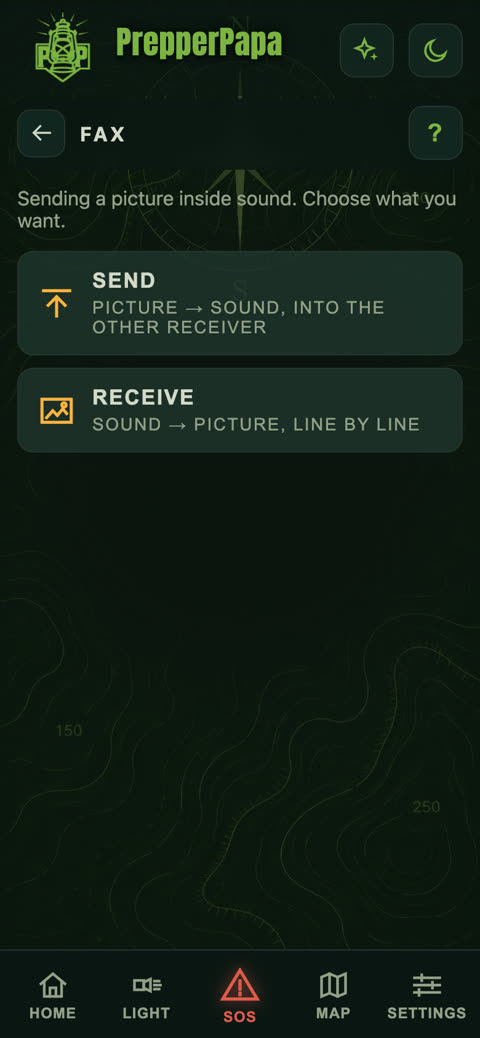
What it does: sends a picture as sound, even over a radio.
- Sending: choose a picture and the app turns it into sound. It has to play into the receiving phone.
- Receiving: the receiving phone draws the picture line by line from the sound it hears.
Tip: it works best in a quiet place with the two phones held close together.
15.Local rooms and Rooms
Where: Comms > Local room or Rooms.
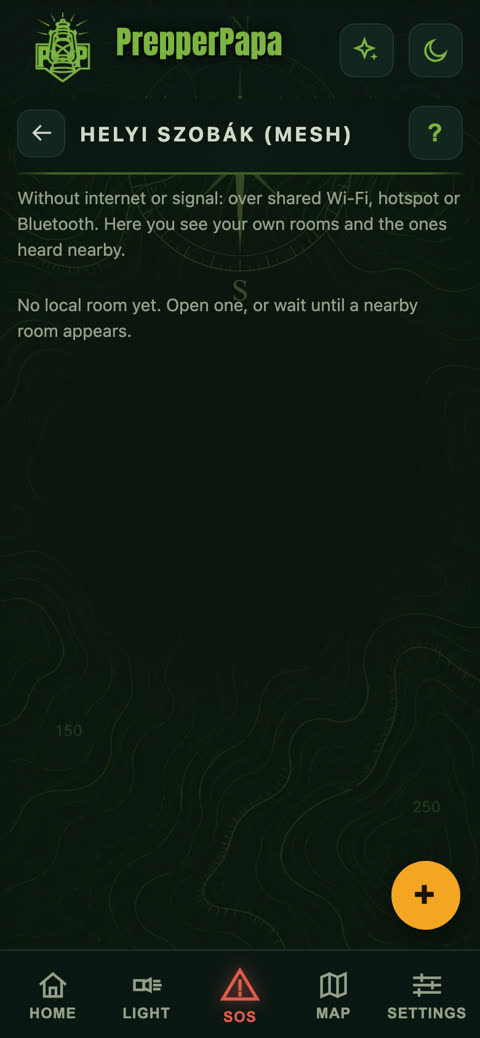
What it does: Local room carries text to people near you over shared Wi-Fi, a phone hotspot or Bluetooth, without an internet subscription. Rooms are closed groups over the internet.
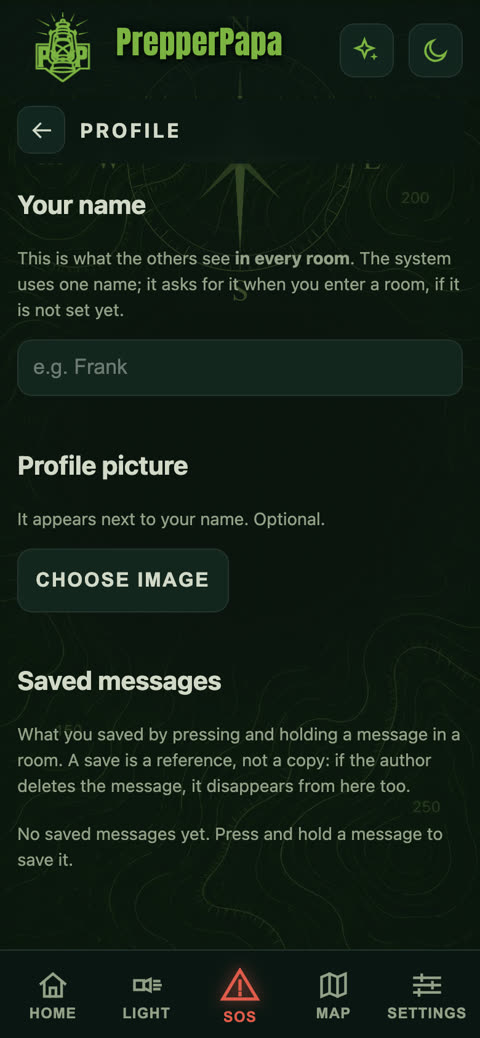
- First enter your name on the Profile screen (and a profile picture if you like): this is how others see you.
- Local room: you need a shared network (a router or a phone's hotspot); everyone connects to it and opens the app.
- Use the yellow + button to open a new room, or wait for a nearby room to appear.
- Rooms: use the + button to create one, or join an existing one with a code. The room's host approves who joins.
Free and premium: Local room is free for everyone. With Rooms, the free version lets you create 1 room of your own and be a member of 3 rooms; with a premium code you can create 10 rooms and be a member of any number of rooms.
Tip: long-press a message to save it, and you can find it later on the Profile screen.
16.Secret QR
Where: Home > Secret QR tile.
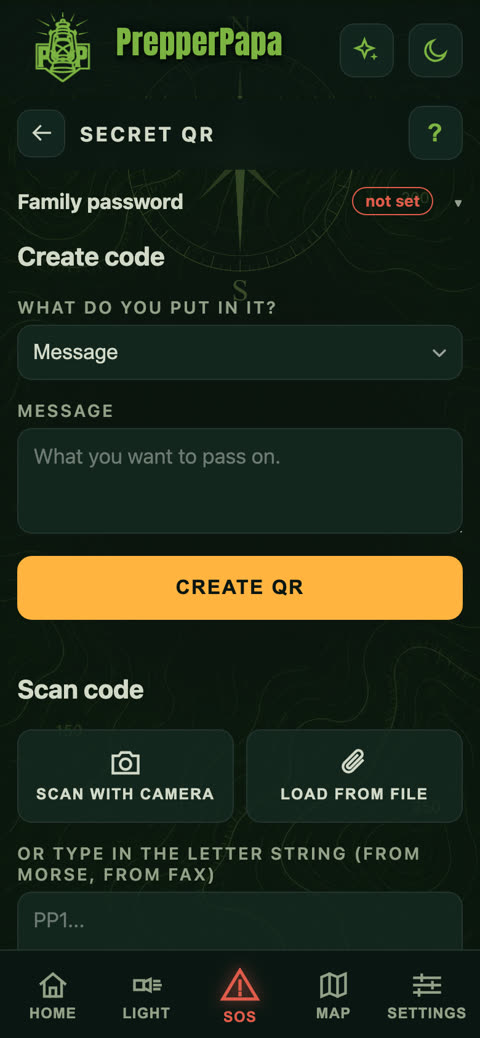
What it does: puts a message, location, list or personal details into a QR code that only someone who knows your family password can read.
- Set the Family password (at the top, if it still says “not set”).
- Choose what to put in it and type the message.
- Press the Create QR button.
- Reading: Scan with camera, Load from file, or type in the string of characters if you received it by Morse or fax.
Tip: agree on the password in person beforehand, not in a message.
17.Tools
Where: Home > Tools tile.
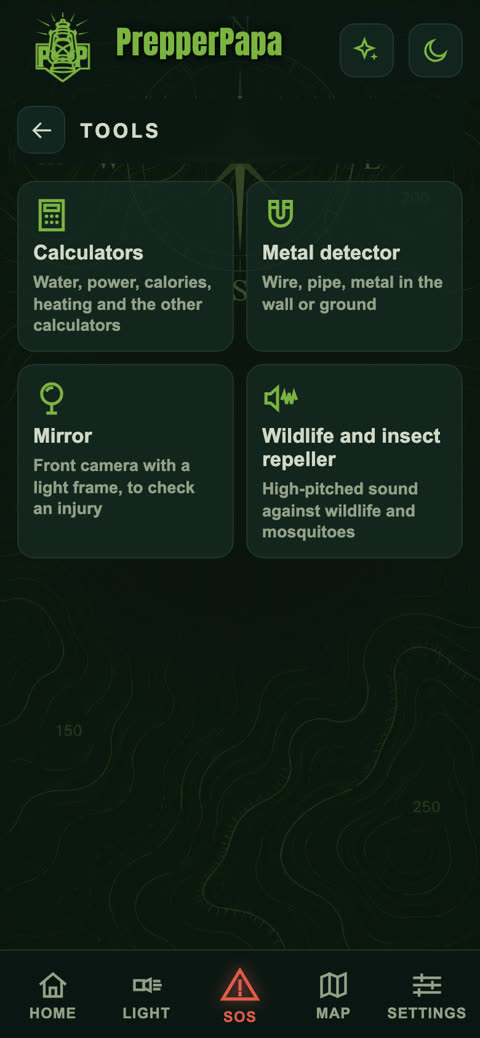
What it does: Calculators, Metal detector (iron and steel in a wall or in the ground), Mirror (front camera with a light frame, for checking an injury), Wildlife and insect repeller.
18.Calculators
Where: Tools > Calculators.
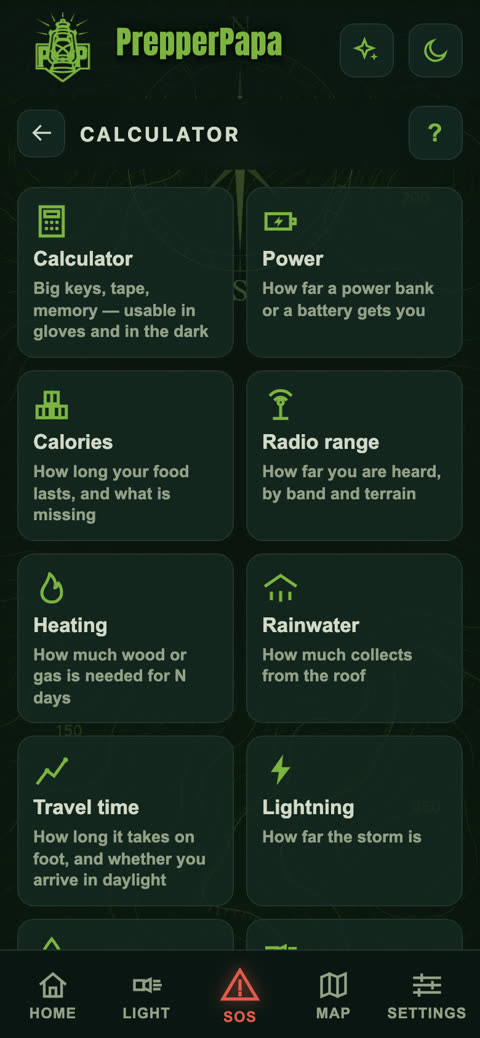
What it does: Calculator (big buttons, tape, memory, usable with gloves and in the dark), Power (how long a power bank or battery lasts), Calories (how long the food lasts), Radio range, Heating (how much wood or gas you need), Rainwater (how much collects from the roof), Travel time (will you get there in daylight), Lightning (how far away the storm is), Water purification (how much bleach you need, how long to boil), Lamp runtime.
- Tap a calculator.
- Enter the data and the result appears instantly.
Tip: every step can be reviewed on the calculator's tape, so you will not lose track of your sums in the field.
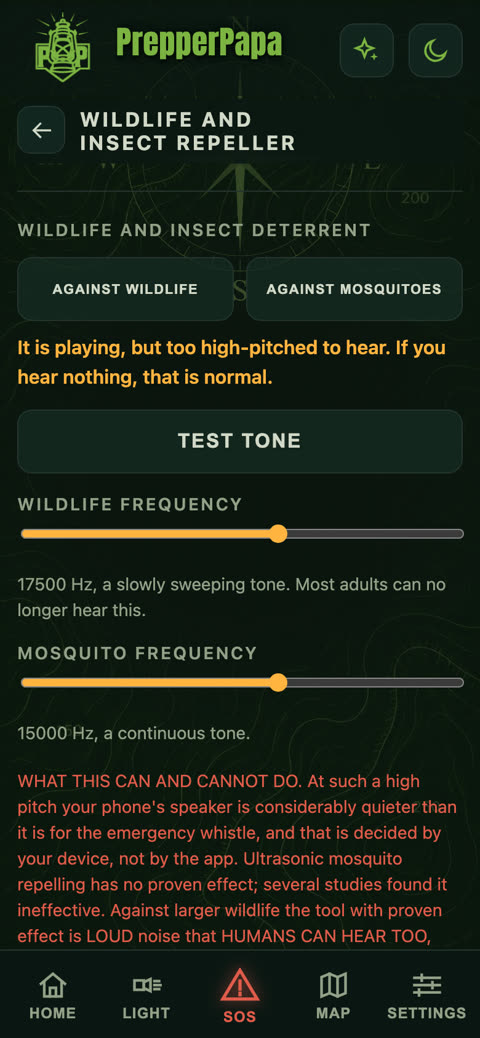
19.Wildlife and insect repeller
Where: Tools > Wildlife and insect repeller.
What it does: plays a high-pitched tone to keep wildlife and mosquitoes away.
- Choose: Against wildlife or Against mosquitoes.
- Use the slider to adjust the frequency.
- The Test tone button plays a short, clearly audible beep, so you can check that the speaker works. It does not stop a repeller that is running.
Tip: the repeller tone is deliberately too high to hear. If you hear nothing, that is normal.
20.SOS (emergency)
Where: the red SOS button in the middle of the bottom menu. Free, works without internet.
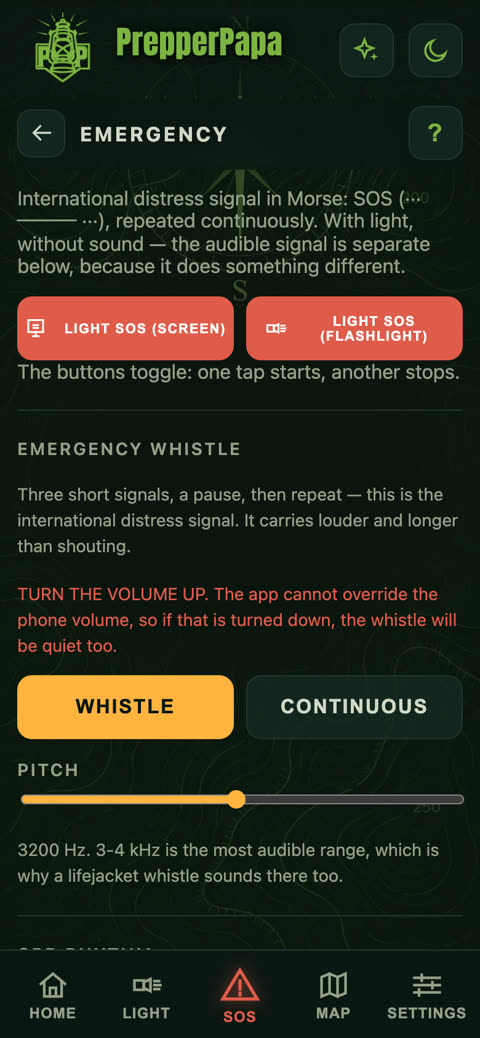
What it does: light SOS with the screen or the flash, a loud emergency whistle, CPR rhythm, calling the emergency number 112, fall detection and a quick emergency card.
- Light SOS (screen) or Light SOS (flash): one tap starts it, another stops it.
- Emergency whistle: Whistle or Continuous, with adjustable pitch. Turn the volume up.
- CPR rhythm: a sound sets the pace, so you do not have to count in a panic.
- Call emergency services (112 in the EU): the single European emergency number.
- At the very bottom, the Quick emergency card.
Tip: the emergency whistle carries best at around 3-4 kHz, which is why rescuers can hear it from further away.
21.Fall detection
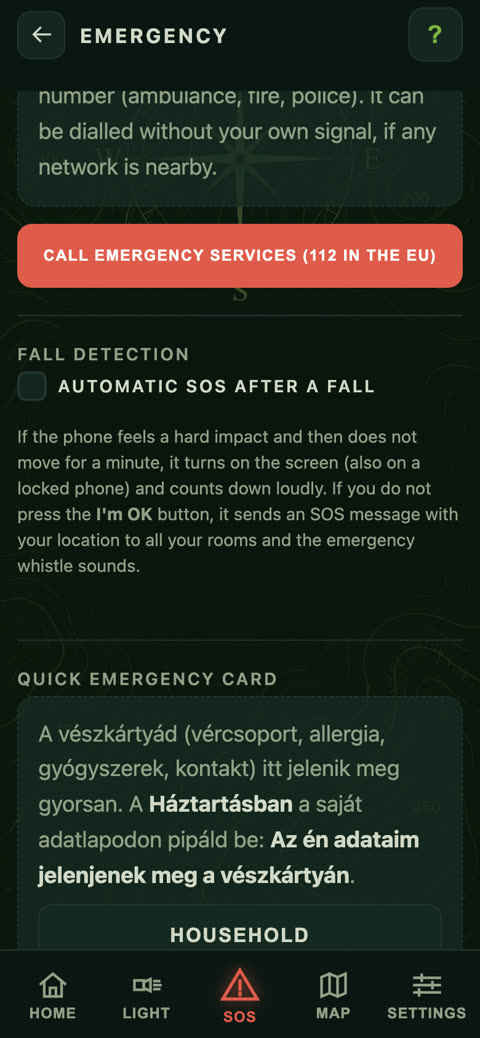
Where: SOS screen > Fall detection.
What it does: if the phone senses a hard impact and then does not move for a minute, it turns the screen on and counts down out loud. If you do not press the I'm OK button, it sends an SOS message with your location to your rooms and sounds the emergency whistle.
- Tick Automatic SOS after a fall.
- Grant the permission if the app asks for it.
- If it goes off by mistake, press the big I'm OK button.
Tip: the message needs a connection to your rooms; the countdown and the emergency whistle work without one.
22.Light
Where: the Light button in the bottom menu. Free, works without internet.
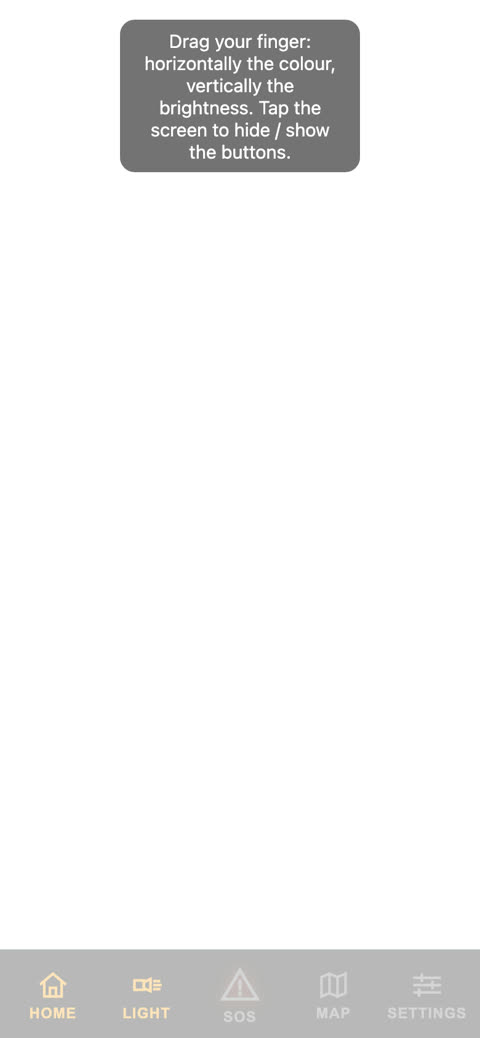
What it does: a torch using the flash or the screen, with adjustable colour and brightness, and a red night light.
- Tap the Light button: the flash turns on and the screen stays dark.
- Tap once more: only the flash stays lit.
- For screen light, swipe: horizontally to change the colour, vertically to change the brightness. Tap to bring up the buttons.
Tip: red light does not dazzle eyes that have adjusted to the dark.
23.Night mode
Where: the moon icon in the top bar.
What it does: the whole app turns red, so it does not dazzle you in the dark or spoil your night vision. The map and the light stay red too.
- Tap the moon icon to turn it on, and tap again to turn it off.
24.Settings
Where: the rightmost button in the bottom menu, Settings. Free.
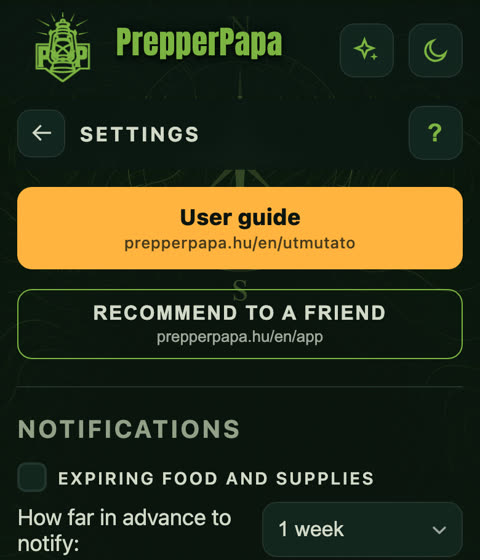
What it does: notifications about expiring food and stock, vibration feedback, language, text size, help, privacy, redeeming a premium code.
- Notifications: tick the box and choose how far ahead to be reminded (3 days, 1 week, 2 weeks, 1 month). Try it with the Test notification button.
- Language and Text size: set them however suits you.
- Help: on every screen, the question mark in the header opens help too.
Tip: if notifications are blocked, the app tells you where to turn them on in your phone's settings.
25.Redeeming a premium code
Where: Settings > Unlock.
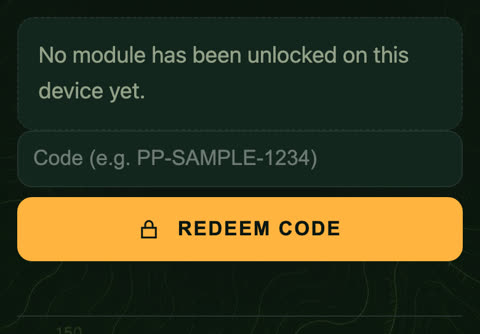
What it does: this is where you redeem your premium code.
- Enter the code in the field.
- Press the Redeem code button. Redeeming needs an internet connection.
- After that, family members and stock are unlimited, the extended knowledge base opens, and map route planning becomes unlimited, with downloadable offline maps.
Tip: one code works on up to two of your devices.
26.If a permission is missing
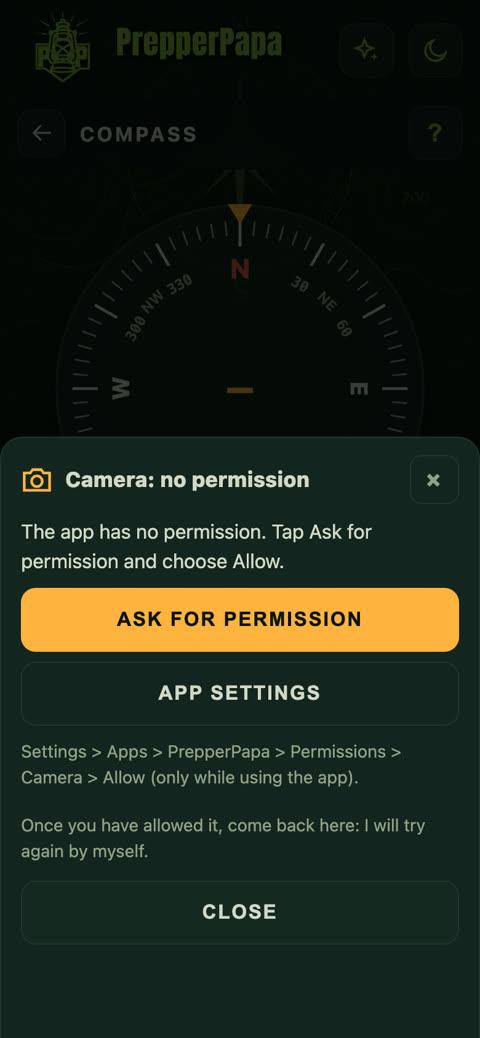
Where: it appears by itself when a feature needs a permission (camera, microphone, location, notifications, motion sensors, Bluetooth).
What it does: tells you what is missing, what it is needed for and what to do.
- Tap the Ask for permission button and choose Allow.
- If no prompt appears, the App settings button opens your phone's settings with one tap.
- Once you have granted it, come back: the app tries again by itself.
27.Send feedback
Where, in two places:
- the speech bubble icon in the top bar (no label),
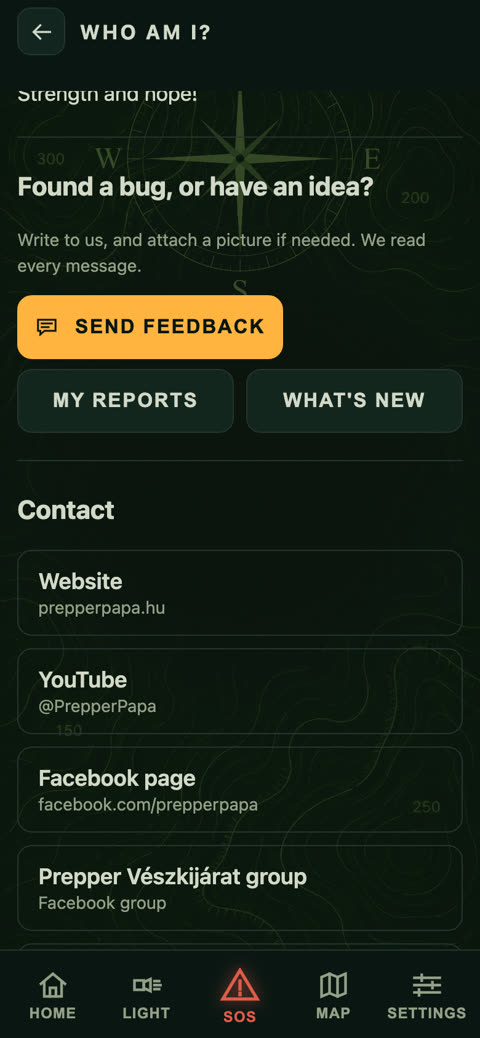
- the Send feedback button on the Who am I? page.
What it does: lets you send us a bug report or an idea, together with a screenshot.
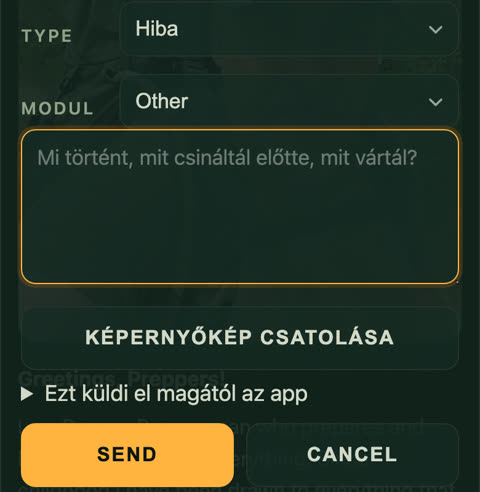
- Choose the type (bug or idea) and the part of the app it is about.
- Describe what you did, what you saw and what you expected.
- Attach a screenshot if needed.
- Press the Send button.
Tip: use the My reports button to look back at what you have sent, and the What's new button to see what has changed in the app.
28.Asset Manager
Where: Home > Assets tile.
The Asset Manager is a separate product. Inside the app you can try it with up to 10 items, on both the free and the premium version; for full use you buy it separately on Google Play and the App Store. Once you buy it, it also works fully inside PrepperPapa.
If you get stuck
Write to us from the app: the speech bubble icon in the top bar, or the “Send feedback” button on the “Who am I?” page. Tell us what you did, what you saw, and what phone you are using.